
Install the Gmail add-on.
One click in Gmail. We never see anything outside the message you have open.
Open the Marketplace listing
The fastest way through this guide is the button on the right. We’ll walk through every screen below in case you’d rather read first.
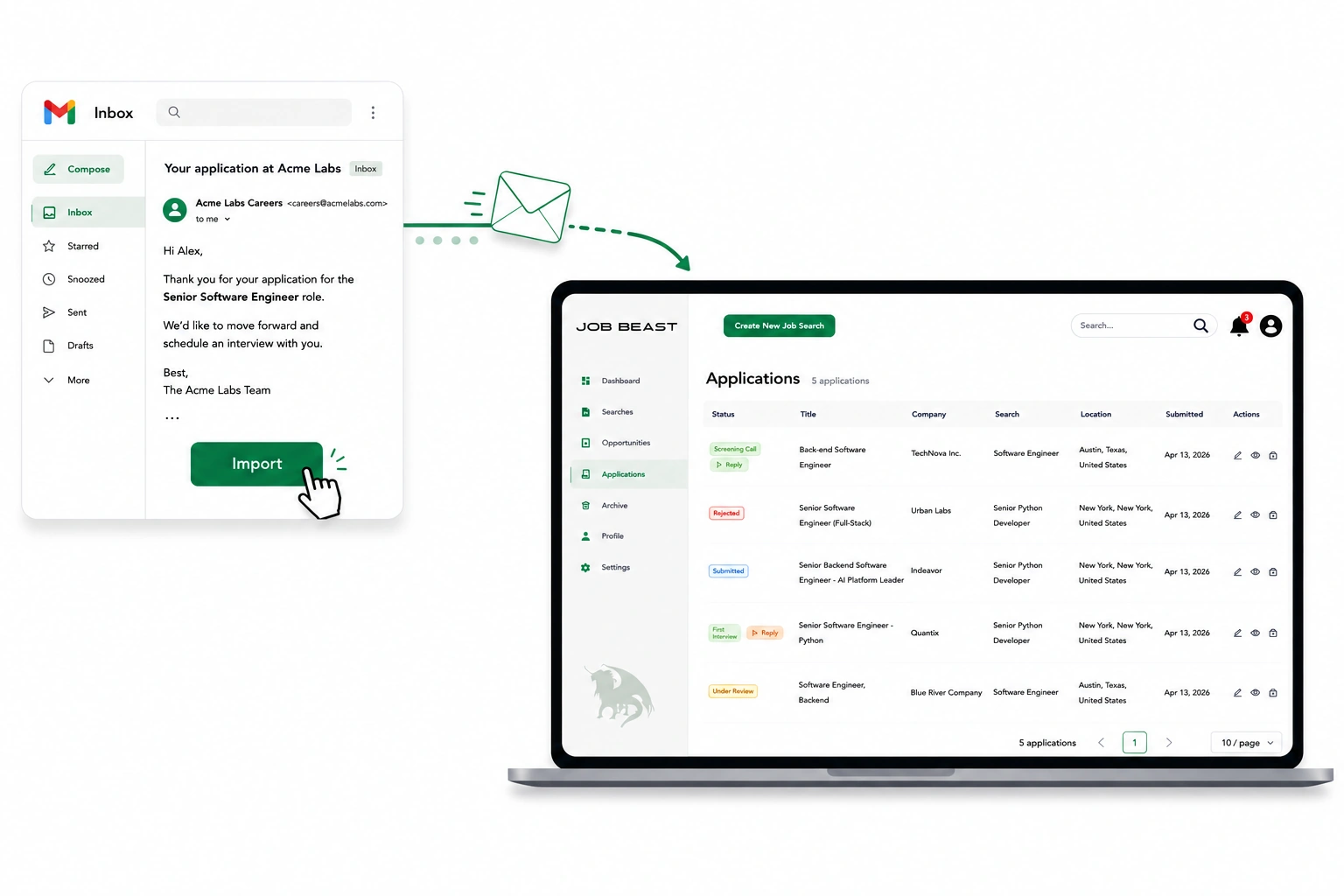
Before you start
The add-on identifies you by your Gmail address and looks you up in Job Beast. That means you need two things in place first:
- A Job Beast account.
- Without an account, the add-on has nothing to attach imported emails to.
- Sign up free at app.jobbeast.org — no credit card required.
- Gmail connected inside Job Beast.
- This is how we send your applications on your behalf — and how the add-on later recognises you when you open a reply.
- Connect from Settings → Connected Accounts, or accept the prompt the first time you hit Apply on an opportunity.
If you install the add-on before doing this, the sidebar will tell you and link you back to app.jobbeast.org to finish connecting.
Step-by-step
- 1
Open the Marketplace listing
Open the Job Beast listing on Google Workspace Marketplace.
- 2
Click Install
Click the Install button on the listing. Google will show a brief summary of the add-on plus the OAuth scopes it requests.
- 3
Approve the permissions
Read the consent screen. Every requested scope is bounded to the single Gmail message you have open in the panel — we never request
gmail.readonlyor any restricted scope. The full breakdown is on the Gmail Add-On deep-dive. Click Allow to continue. - 4
Open a reply in Gmail
Refresh Gmail. The Job Beast icon now appears in the right-hand sidebar. Open any reply you want imported, then click the Job Beast icon to open the panel.
The panel reads your Gmail address (via
userinfo.email) and looks up your Job Beast account. No separate sign-in is needed inside the panel — provided you’ve already connected Gmail in Job Beast (see Before you start above). If the lookup fails, the sidebar shows a “Connect Gmail at app.jobbeast.org first” message with an open-app button. - 5
Click Import to Job Beast
The panel auto-suggests the matching application from sender + subject. If it’s right, click Import to Job Beast. If not, pick from the dropdown of your active applications, then click Import. The dashboard updates within a second.
Troubleshooting
The add-on doesn’t appear in the sidebar after install
Refresh Gmail (the tab, not the whole browser). If it’s still missing after a refresh, check that the Google account you installed it on is the same account you’re currently signed in to in Gmail.
“The administrator of your domain has not allowed this app”
If you’re using Gmail through a Google Workspace account (e.g. a corporate or school address), your administrator may restrict which Marketplace add-ons users can install. You have two options: (1) ask your admin to allowlist the Job Beast add-on, or (2) install on a personal Gmail address and forward replies by hand from your work address until access is approved.
I want to remove the add-on
The cleanest revoke path is your Google Account permissions page — find “Job Beast” in the list of connected apps and click Remove access. You can also uninstall the add-on directly from its Workspace Marketplace listing.