
Set up manual forwarding.
Five seconds per reply. No setup. We never see anything else.
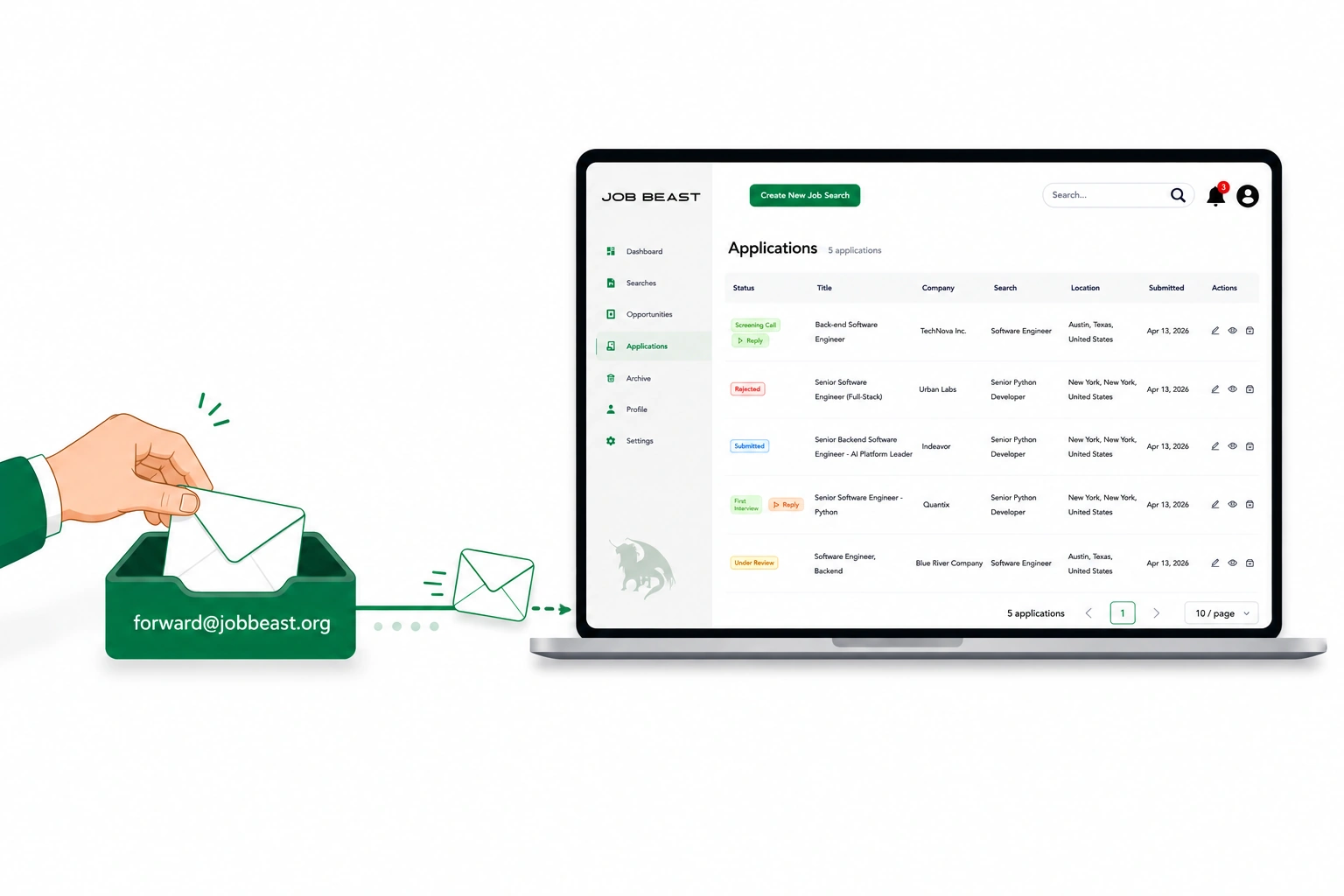
The five-second flow
- 1
Open the reply
In Gmail, open the message you want recorded in Job Beast. Anything you don’t open and forward is invisible to us.
- 2
Click Forward
On desktop: click Forward at the bottom of the open message.
On Android or iPhone: tap More (the three-dot menu) at the top right of the message, then Forward.
- 3
Type
[email protected]in the To: fieldYou don’t need to add a message body or change the subject. Gmail wraps the original message’s visible From, Subject, Date, and body inside the forward — that’s what we parse to match the email to the right application.
Tip.For guaranteed routing on a specific application, copy that application’s own forwarding address from its page in Job Beast and use that instead of the generic one. It skips the matching cascade entirely.
- 4
Click Send
That’s it. The message arrives at our backend mailbox; we pick it up on the next poll (usually within a minute or two).
- 5
Wait for the confirmation email
Within a few minutes Job Beast emails you back with: which application matched, what status changed (if anything), and a recommended next action. If we can’t match the email, you’ll get an “Unmatched” reply with a one-click link to attach it yourself — the link is good for 14 days and works without signing in.
Confirmation behavior is configurable in Settings → Reply Capture. The default sends a confirmation for forwards you sent yourself; you can switch it to always (including auto-forwards) or never.
Troubleshooting
I forwarded but never got a confirmation email
First, check your notification preference in Settings → Reply Capture— if it’s set to Never, confirmations are suppressed even though the forward was processed (your dashboard will still update). If your setting is Manual forwards only or Always, check your spam folder — confirmations come from a Job Beast notification address (not from [email protected] itself), and Gmail occasionally filters them on first delivery. Mark one as “Not spam” and future confirmations land in your inbox. If after 10 minutes there’s still nothing, the original message may have been rejected by our parser — contact [email protected] with the original subject line.
I want to undo a forward
Open the matched application on your dashboard and delete the imported message there. The status update can be manually overridden from the same page.
Forwarding by hand doesn’t feel scalable
It isn’t — if you’re doing more than five or six per week, switch to the Gmail add-on for one-click capture.
Source documentation
The Gmail UI labels and steps above are taken from Google’s official help articles: